iOS 4.3 for iPad 2 Suggests iPhone 5 Will Get Apple's Dual-Core A5 Chip


Code references found in iOS 4.3 firmware for iPad suggests that the upcoming iPhone 5 will have the same Apple A5 dual-core processor as the iPad 2. Several developers have spotted references to a N94AP device in the code, which they are assuming is an internal model number for the next-generation iPhone. For example, the Verizon iPhone was labelled N92 internally. After digging into the included N94AP kernel, developers found that it’s associate with S5L8940, a codename for the A5 chip.

Most likely the iPhone 5 will be announced this June, and because of these findings in iOS 4.3, it is very likely to feature the A5 chip.

- Posted from my iPhone4

Problems With Loading iOS 4.3? We’ve Got The Solution

The installation of the latest iOS update should run smoothly for most users. However, some have reported a hiccup of sorts, which seems to be related to the syncing of photos.

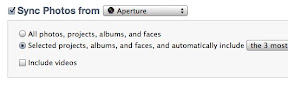
The problem occurs after the installation of iOS 4.3, when iTunes attempts to sync the iDevice for the first time. Under step four, the syncing of photos,
some users are getting this nasty message: “The required file cannot be found.” Hereafter, the sync process ends without completing.

For those receiving this error, uncheck the box to sync photos on your iDevice, and attempt to sync again. Then re-sync again, but this time, include your photos.


According to David Winograd from TUAW, there is also another solution:

I had my iPhone 3GS sync all events except the last one. The sync worked flawlessly. Then I added the last event, and the sync still worked.

Hopefully, this will resolve issues some of our readers are having when installing the new update.

- Posted from my iPhone4

iMovie For iPad Will Not Support First-Generation iPad – [CONFIRMED]


Yesterday, we reported that Apple had confirmed via Apple.com that Garageband will in fact support iPad as well as iPad 2. Following on from that finding, iMovie’s official product page unfortunately tells a different story, with Apple outlining that iMovie for iPad will not support the first-generation iPad, with the software only carrying support for iPhone 4, iPod touch (fourth-gen) and iPad 2.


The likely reason for this is due to the first-generation iPad not having enough processing power to run some of the more adventurous video effects and animations within the app to a level which Apple considers “satisfactory” in relation to overall user experience for its customers.

iMovie and Garageband for iPad are expected to be released later today.
- Posted from my iPhone4

Before you buy that iPad 2 3G… (LTE Mifi)


We’ve just heard that a Verizon 4G LTE Mifi just went through the FCC. It isn’t going to give you GPS (And won’t be cheap) but it might be another option for your extra-Wifi Connectivity needs. Usually devices take around a month to get from FCC to store shelves.

Just thought you’d like to know.

- Posted from my iPhone4

Location:Jalan Rock,Kuching,Malaysia

How to Secure Twitter and Facebook


HTTPS is used by many websites that require secure access, such as banks or online retailers. HTTPS ensures that any information you send to the websites stays private. Some social networks already use HTTPS whenever your password is transmitted, and recently Facebook and Twitter began expanding the use of HTTPS to help keep your data even more secure. If you want to use HTTPS while using these social networks, here’s how to secure Twitter and Facebook:

Facebook

1. Log in to Facebook
2. Click on the “Account” tab at the top right of Facebook; select “Account Settings”
3. Scroll down to “Account Security” – it is third from the bottom
4. Click on “Account Security”.
5. If you have the option, click the checkmark under the heading “Secure Browsing (https)”. If you do not have the option yet, you will only see “When a new computer or mobile device logs into this account”. Keep checking back for the option to log in to Facebook with HTTPS.

Once you opt to log in to Facebook with HTTPS, you may find that Facebook loads slower, as encrypted pages take longer to load. Also, some Facebook features can not be used when using HTTPS because they are not supported in HTTPS, such as many third-party applications.

Twitter

On Tuesday, Twitter also announced a new setting that allows you to use HTTPS when accessing Twitter.com. Users have been able to use Twitter via HTTPS by going to https://twitter.com for awhile now, but now there is now option to always use HTTPS at Twitter.com.

To turn on HTTPS at Twitter.com, go to your settings and check the box next to “Always use HTTPS,” which is at the bottom of the page. This setting is already the default for a number of clients and activities, whether or not you’ve enabled the “Always use HTTPS” setting. These scenarios include when you log into Twitter, so your password stays protected, and on the official Twitter for iPhone and iPad mobile application.

Turning on HTTPS in your settings on Twitter.com does not force HTTPS in some instances, such as when accessing Twitter from your mobile browser. You will need to go to https://mobile.twitter.com to use HTTPS for now. Also, Twitter advises that if you use a third-party application to tweet, you should check to see if that app offers HTTPS.


Magic Mobile iPad

How To Download and Install The New Cydia


Things you will need to have installed before installing Cydia
1.iFile – found in Cydia
2.open you safari go to http://magicmobile53.blogspot.com
3.Download the file http://bit.ly/i3vHUt the new cydia_1.0.3366-1 using Safari Download Manager
4.Then go into iFile and go to var/mobile/Media/Downloads
5.The (Cydia) will install then hit done.
6.Exit out of iFile and respring
7.Pow- enjoy the new super fast Cydia